Contents:
1. What is Multi-factor Authentication?
Multi-factor authentication (MFA) is a government required security measure to protect broadband and home phone accounts from unauthorised access.
A customer will be required to MFA from the moment they have a pending Broadband or Home Phone order on their account. If a customer is unable to complete MFA, they will be required to complete the Government ID process.
Top
2. About MFA
2.1 How do we multi-factor authenticate?
2.2 When do you need to multi-factor authenticate?
2.3 Authentication status
2.1 How do we multi-factor authenticate?
- via the IVR (phone calls only)
- by voice agents (when the customer fails to get authenticated via IVR), using the verification and authentication process in Zendesk
- by chat agents using the verification and authentication process in Zendesk
- via MyAccount for Broadband or Home Phone customers logging in using a web browser
- via MyFoxtel app for customers who are trying to access a screen requiring MFA.
2.2 When do you need to multi-factor authenticate?
- when Broadband and Home Phone customers need to perform certain high-risk transactions, they will need to be verified and authenticated via the IVR, agent, or chat channels
- customers who are not required to multi-factor or are not making a high-risk transaction will have their case in Zendesk reflect as not required
- if a customer does not have an active mobile phone number, they will not be able to complete the MFA process and will need to complete the Government ID process
- if the customer was not successfully authenticated in the IVR you will need to complete the MFA process in Zendesk as a part of the verification process.
2.3 Authentication status
The customer's verification status is displayed in Zendesk as either "Authenticated" or "Not Authenticated". Zendesk does not use the colour indicators or symbols to represent this status.
Top
3. The IVR Multi-factor Journey
3.1 What is the IVR's definition of high risk?
3.2 The IVR MFA process
3.1 What is the IVR’s definition of high risk?
All Broadband and Home Phone customers are considered high risk by the IVR, unless they are calling for one of the following reasons:
- to make a payment
- to order a main event
- only to hear the account balance
-
to activate a self-install kit.
- Customer contacts Foxtel on 131 999
- The IVR will attempt to ID the customer using their phone number plus their date of birth and postcode
- The IVR will then capture the customer's reason for calling (i.e. billing, technical, change)
- The IVR will then determine if the customer has a Broadband or Home Phone service with Foxtel
- With the correct conditions met, the MFA process will start by sending the customer a one-time 6-digit code to their mobile phone
- The customer will then enter the one-time code followed by the hash (#) key
- If successful, the customer will be then transferred to an agent with the authentication flag showing as a green tick.
Note: If the customer is having issues with the IVR or fails authentication by entering an incorrect code then the customer will be routed to an agent to complete the MFA process.
Top
4. The Agent Multi-factor Journey
4.1 Business rules
4.2 Phone agents
4.3 Chat agents
-
Where MFA is required:
- The MFA process is applicable for certain high-risk interactions involving Broadband and Home Phone customers, such as when there is a need to make changes to a Broadband or Home Phone account or disclose personal information listed on the account.
- A customer will be required to complete the MFA process from the moment they have a pending Broadband or Home Phone order on their account.
- MFA must only be completed with the account holder.
- Authorised users are unable to complete MFA and therefore unable to discuss or make changes to Broadband or Home Phone accounts.
- When assisting with a general enquiry or basic troubleshooting, if an agent is required to discuss something that relates specifically to a customer’s account (such as personal or billing information), they must complete the MFA process.
-
If an agent offers a Broadband or Home Phone call back (for example, to deliver updates on a case) relating to something requiring verification, they must verify and authenticate the customer on each call.
-
Where MFA is not required:
- MFA is not required prior to an interaction with a TV-only customer (a customer not having a Broadband or Home Phone connection with Foxtel).
-
MFA can be overridden for outbound calls, except when the agent needs to:
- Add additional ongoing charges or a large one-off charge to the customer’s Broadband or Home Phone monthly cost.
- Update the customer’s personal information.
- Discuss personal information that is not included on the customer’s bill.
- Conduct a transaction where the customer may lose access to their Broadband or Home Phone connection.
-
For all other scenarios, only verification is required. Verify the customer’s details and then override MFA. If overriding MFA, select Outbound Call from the list of reasons and then provide a detailed explanation. See the sections on Outbound Calls and Overriding MFA in this article for more details.
-
MFA is not required if a Broadband or Home Phone customer is calling for one of the following reasons:
- Make a payment.
- Order a Main Event.
- Only to hear account balance.
- Activate a self-install kit (SIK).
4.2 Phone agents:
- Receive the call.
- Discuss the customer's enquiry and commence verification flows.
- Launch the verify customer flow and verify as per normal.
- Once verified, begin authentication using the MFA process flow.
-
Advise the customer that you will be sending a one-time 6-digit code to their mobile phone.
(Note: Do not tell the customer what phone number the code will be sent to) - The customer should receive the code within a few seconds and then read it back to you to enter into your case.
- You will have 3 attempts to complete this. Once successfully authenticated, select Finish.
Note: Once authenticated, the customer will remain authenticated for the duration of the phone call.
Note: Any transferred calls will open a new case for the receiving agent and will carry through key data points from the previous case including an up-to-date view of the authentication.
4.3. Chat agents:
- Receive the customer.
- Discuss the customer's enquiry and commence verification flows.
- Go to the Actions tab, then Verify Customer and click Verify. Select Yes to confirm the customer is able to be verified.
- You will be prompted with the option to bypass the authentication process. Click No to progress to the MFA authentication.
-
Advise the customer that you will be sending a one-time 6-digit code to their mobile phone
(Note: Do not tell the customer what phone number the code will be sent to) - The customer should receive the code within a few seconds and then read it back to you to enter into your case.
- Enter the code manually in the box available, then click Validate Code. If the customer has quoted an incorrect code or you have entered the incorrect code, a pop-up will appear.
Note: Successful MFA authentication for chat will be valid for the rest of the chat session. Messaging sessions will remain valid for 24 hours.
Top
5. Outbound Calls
Outbound calls work in a slightly different way. For an outbound call, the MFA process is only required in the following scenarios:
- You're adding an additional ongoing (for example, upgrading the customer's speed tier) or a large one-off charge (for example, the $300 nbn™ New Development Charge) to the customer’s Broadband/Home Phone monthly cost.
- You're updating the customer’s personal information (for example, email address) or account security information (for example, password resets).
- You're discussing personal information that is not included on their bill (for example, email address, date of birth or mobile number).
- A transaction is being conducted where the customer may lose access to their Broadband or Home Phone (for example, if the customer asks to disconnect).
- For all other scenarios, only verification is required. Verify the customer and then override authentication. If overriding, select Outbound Call from the list of reasons and then provide a detailed explanation.
Note: Visit MFA troubleshooting and objection handling for override templates.
Top
6. MFA and MyAccount
6.1 The MFA journey via My Account and the MyFoxtel app
6.2 How MFA via the website and MyFoxtel works
6.3 What if a customer cannot complete MFA in my account
6.1 The MFA journey via My Account and the MyFoxtel app
The MFA process also affects customers when they are accessing their MyAccount via the website or the MyFoxtel app.
- A customer accessing the website will be prompted to MFA on logging in to their MyAccount.
-
A customer will only be triggered to MFA via the MyFoxtel app when the customer is attempting to access:
- Their profile
- TV Packs
- Billing
- Broadband
- Home Phone
- Shop
6.2 How MFA via the website and MyFoxtel works
- The customer logs into My Account.
- Behind the scenes the system will determine whether to initiate the MFA process.
- The customer will be informed that an SMS has been sent to them.
- The customer will receive the code, type it in and click the ‘submit’ button where they will have 3 attempts to enter the correct code.
- Once the MFA process has been successfully completed, the customer can continue (note: successful MFA will remain valid for 2 hours on the website and 30 minutes for the MyFoxtel app).
6.3 What if a customer cannot complete MFA in MyAccount?
- If the customer is having trouble receiving or entering their code, they will be asked to try again later or contact us for assistance.
- If the customer's mobile phone number is not on file or associated with their account, they will be asked to contact us for assistance with adding their number.
Top
7. MFA Troubleshooting and Objection Handling
7.1 Scenarios
7.2 MFA Customer Complaints
7.3 Viewing MFA Transaction Lists
-
It’s the wrong mobile phone number:
- Ask the customer to confirm their current mobile number (ensure that they are reading it out to you, and not the other way around - you cannot read a customer's contact details out loud without authenticating first).
- If you confirm that it is incorrect/doesn't match the account, there is no reason to send the unique code.
- Instead, introduce the government ID process and transfer the call/interaction to the Specialist ID team.
Note:
- There may be an alternative mobile phone number in the contact view of the customer, in the 'Other Number' field - if the customer says the correct number is the one in this field (again, confirm by ensuring they read it out to you, not the other way around), you are allowed to switch the main number with the number in the 'Other Number' field and complete the MFA process.
- You are not allowed to change any other fields on the contact record or submit or use a new number outside of what is already in the contact view until authentication has been completed.
-
The customer doesn’t have the correct mobile phone with them:
- Ask the customer to confirm their current mobile number (ensure that they are reading it out to you, and not the other way around - you cannot read a customer's contact details out loud without authenticating first).
- If correct, ask customer to get back in touch with us when they have the correct phone.
- If you confirm that it is incorrect or doesn't match the account, there is no reason to send the unique code.
- Instead, introduce the government ID process and transfer the call or interaction to the Specialist ID team.
-
The customer does not have a mobile phone at all:
- Follow the Government ID process and transfer the call/interaction to the specialist ID team.
-
The customer is an authorised user, not the account holder:
- Please note that authorised users are not supported as part of Customer 360.
- This means that the account holder must get in touch with us directly to make any changes or receive any personalised account information.
-
The customer refuses to complete the MFA process:
- The customer may be concerned with the requirement of the process and the information collected to complete it. As it is a new requirement they may be confused if they have never heard of it.
-
The unique SMS code isn’t working:
- You can try resending the SMS an additional two more times.
- Government ID process (facilitated by the Specialist ID team) is only required when customers identifiers (eg: Mobile number) are incorrect.
7.2 MFA Customer Complaints
When opening a new Complaint case, you'll notice that there are new options in the 'Issue' and 'Sub-Issue' dropdown menus. These relate to issues with the MFA process. Please ensure you are classifying complaints correctly and use these new options appropriately if a customer would like to make a complaint about MFA.
7.3 Viewing MFA Transactions Lists
- If you ever need to look up a particular MFA transaction (for example, to check the number a code was sent to on a particular date), you can refer to the 'MFA Transactions' list within the 'Related List' tab.
- This list shows information such as the date and time, the mobile phone number the code was sent to and the status of the MFA transaction.
Note: This table will include all authentication activities, across all channels (voice, IVR, digital etc.).
8. Overriding MFA
8.2 How to override MFA correctly
8.3 Authorised third party and vulnerable customer overrides
8.1 MFA Scenarios
There are a few scenarios where overriding the MFA process is acceptable. It’s crucial to understand that these are the only reasons to override the MFA.
| Override Reason | Explanation |
|---|---|
| Authorised Third Party |
Defined as "a person who is authorised by the customer, or by a court or tribunal or any other body legally empowered to represent customers, to act on behalf of the customer, other than an authorised representative" on someone's account. Examples include: Public Trustees, State Trustees, Debt Collection agencies and the Telecommunications Ombudsman (TIO). This override reason should only be used by Customer Resolutions and Escalated Billing teams. |
| Outbound Call | Aside from the five exceptions as per the information in the "Outbound calls" section of the MFA for Voice lesson, all outbound calls should override authentication using this reason. |
| Vulnerable Customer |
This reason is in place for use in the event that a vulnerable customer has been identified (as per the process in FoxHow) and cannot proceed with authentication. Note: This must not be used for current Domestic Violence situations as it could place the caller in more danger, instead follow the Sev1 Process. |
| Other |
This reason is in place to capture all other override reasons, to cover what we don't know. Please remember that there must be a strong reason for not undergoing the authentication process. Examples of when to use this reason include (but are not limited to) deceased estates and when a Complaint case has been raised by an agent and escalated to a Team Leader. |
8.2 How to override MFA correctly in Zendesk
The following steps are required to override the multifactor authentication process in Zendesk:
- On the override screen, you will see a dropdown menu and a field to add a note.
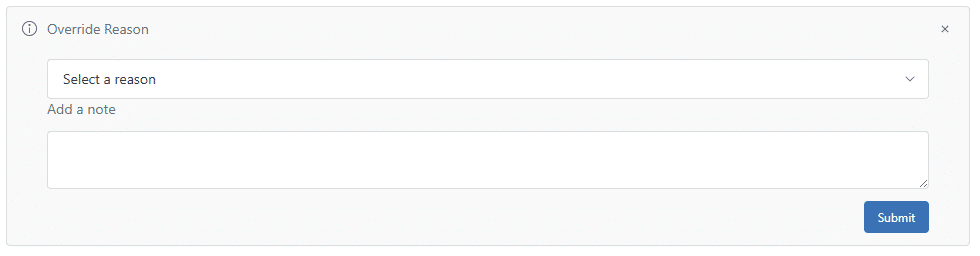
- From the dropdown menu, select the reason. Ensure you closely adhere to the rules above before selecting the override reason.
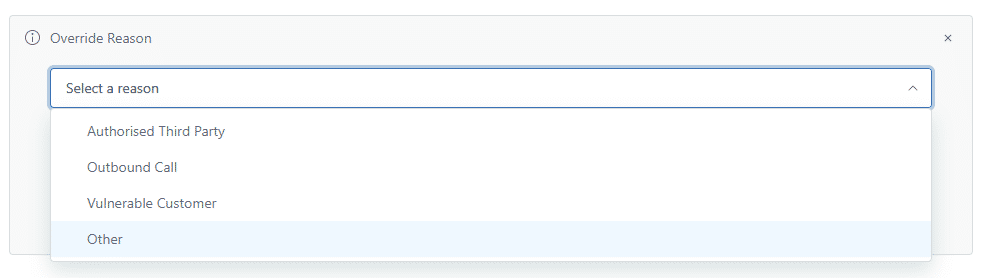
- In the Add a note field, enter the reason for the override of the MFA process. Then, click Submit.
End of procedure
8.3 Authorised Third Party and Vulnerable Customer Overrides
To override eligible customers, you will need to select Yes and input your override reason and a detailed description of why. Use the override notes templates available below.
8.4 Override notes templates
These are examples of the detailed information expected when overriding MFA. Copy and paste these into your override notes and fill out information accordingly:
| Override Reason | Template |
|---|---|
| Authorised Third Party |
|
| Outbound Call |
|
| Vulnerable Customer |
Refer to the Vulnerable Customer process in FoxHow to determine if a customer is in vulnerable circumstances. NB do not override MFA if customer is in danger due to Domestic Violence, instead follow Sev1 Process.
|
| Other | Provide as much information as possible for the scenario in which you are overriding authentication |
Top
9. Fraud and the role you play
- Fraudulent behaviour affects our customers and the business. When fraud goes undetected, it can have lasting financial, personal and legal impacts. Scams over telecommunications networks are a significant problem at a historically high level, causing financial and emotional harm to victims.
- Scammers are increasingly sophisticated and find new, hard to detect ways of targeting business processes and technologies to perpetrate fraud on and through telecommunications services. Often scammers’ methods involve the fraudulent collection of personal information and data to commit identity fraud. Scammers adapt to technology quickly, build knowledge of customers and companies, and are opportunistic of events and crises.
- While Multi-Factor Authentication is one measure to help keep customers safe in the event of fraud, it's important for agents to keep an eye out for potentially fraudulent behaviour too. This means being alert and aware during your interactions, and always reporting if something doesn't seem right. Have a curious mindset and ask customers questions if you want to clarify something.
- You may proactively notice something out of the ordinary, or a customer may report suspicious activity to you. Even if it turns out to be nothing, it's better to ask questions and report things that are of concern. You can do this by emailing SRT@foxtel.com.au with account information and a summary of the issue, or by escalating the interaction to your leader in real time who can assess the situation.
We all need to work together to keep our customers and the business safe.
Top
10. Verification in Zendesk
See Overview - call best practice for correct way to verify your customer prior to completing any authentication needs on your chats or calls.
View the Government ID process: Overview - Government ID.