Contents
1. Description
This procedure will outline how to complete multi-factor authentication in Zendesk.
Multi-factor authentication (MFA) is a process that must be completed for Foxtel residential customers who have an active broadband service.
Top
2. Rules
When MFA is required
Broadband and Home Phone customers completing certain high-risk transactions must be verified and authenticated via the IVR, an agent or chat channels.
When MFA is not required
Customers who are not required to complete MFA, or who are not performing a high-risk transaction, will have their ticket/case marked as TBC.
Manual MFA in Zendesk
If the customer was not verified through the IVR or chat, you must complete the MFA process manually in Zendesk by following the steps outlined below.
Top
3. Tasks
- Navigate to the Actions tab, then Verify Customer and click Verify.
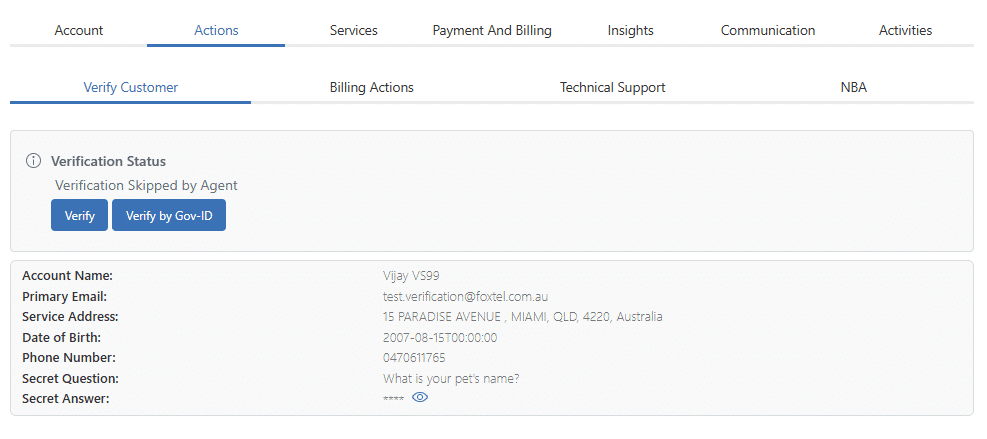
- Click Yes to confirm the customer was verified.
- Next, you will be prompted with the option to bypass the authentication process. Click No to progress to the MFA authentication screen (more information available here).

- Send the 6-digit code via SMS to the mobile phone available on the customer's account. If successful, you will see a success message in the top-right corner of the screen.
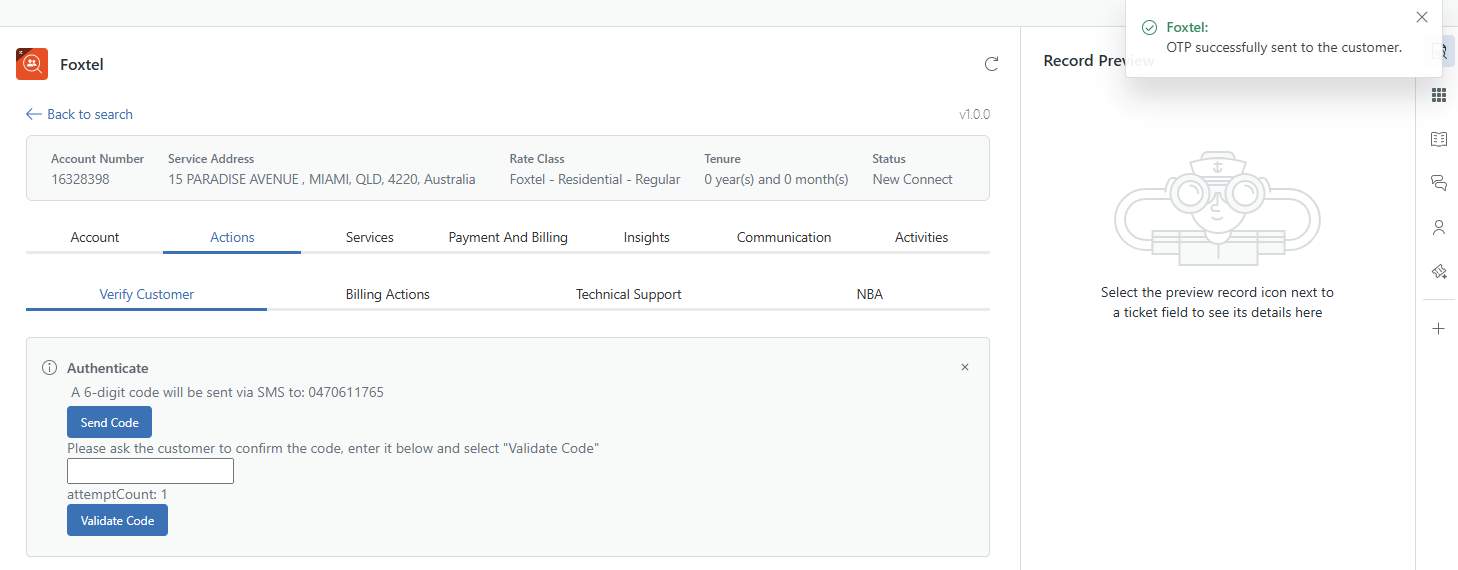
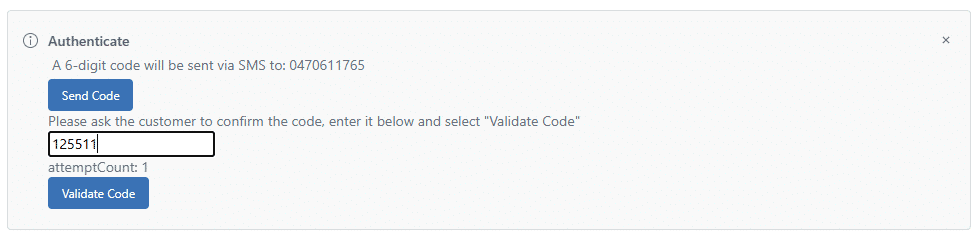
- Enter the 6-digit code manually in the box available, then click Validate Code. If the customer has quoted an incorrect code or you have entered the incorrect code, a pop-up will appear.
End of procedure.
Overriding Multifactor Authentication
Rules
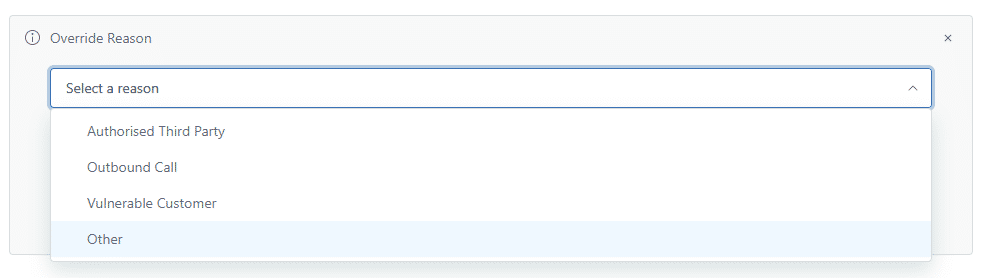
| Override Reason | Explanation |
| Authorised Third Party | Defined as "a person who is authorised by the customer, or by a court or tribunal or any other body legally empowered to represent customers, to act on behalf of the customer, other than an authorised representative" on someone's account. Examples include: Public Trustees, State Trustees, Debt Collection agencies and the Telecommunications Ombudsman (TIO).This override reason should only be used by Customer Resolutions and Escalated Billing teams. |
| Outbound Call | Aside from the five exceptions as per the information in the "Outbound calls" section of the MFA for Voice lesson, all outbound calls should override authentication using this reason. |
| Vulnerable Customer |
This reason is in place for use in the event that a vulnerable customer has been identified (as per the process in FoxHow) and cannot proceed with authentication. Note: This must not be used for current Domestic and Family Violence situations as it could place the caller in more danger, instead follow the Sev1 process. |
| Other | This reason is in place to capture all other override reasons, to cover what we don't know. Please remember that there must be a strong reason for not undergoing the authentication process. Examples of when to use this reason include (but are not limited to) deceased estates and when a Complaint case has been raised by an agent and escalated to a Team Leader. |
Procedure
The following steps are required to override the multifactor authentication process in Zendesk:
- On the override screen, you will see a dropdown menu and a field to add a note.
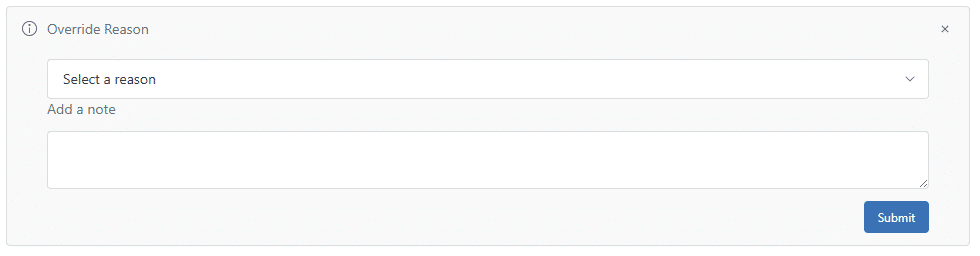
- From the dropdown menu, select the reason. Ensure you closely adhere to the rules above before selecting the override reason.
- In the Add a note field, enter the reason for the override of the MFA process. Then, click Submit.
End of procedure.