Contents
- Introduction to Zendesk
- Accessing Zendesk
- Zendesk interface
- Key features and functions
- How Zendesk works with existing systems
1. Introduction to Zendesk
Zendesk is a customer service and support platform used to service our Foxtel customers. It allows you to manage most customer service tasks within a single, streamlined system.
Used by DAZN, Zendesk is designed to make customer interactions quick and simple, while giving you the tools to easily access and understand key customer information.
2. Accessing Zendesk
You can access Zendesk using the provided URL. This will be supplied to you closer to the launch date.
When you receive the Zendesk URL:
- Open the supplied URL in your internet browser.
- Save the webpage to your favourites for future access.
- It will be confirmed at a later date what information you will need to log into Zendesk.
Note: When you access Zendesk in your web browser, make sure you select Allow when you are prompted by the pop-up blocker. This will avoid any disruptions when following processes in Zendesk.
3. Zendesk interface
3.1 About the interface
3.2 The "Requester" field
3.3 Closing your ticket
3.1 About the interface
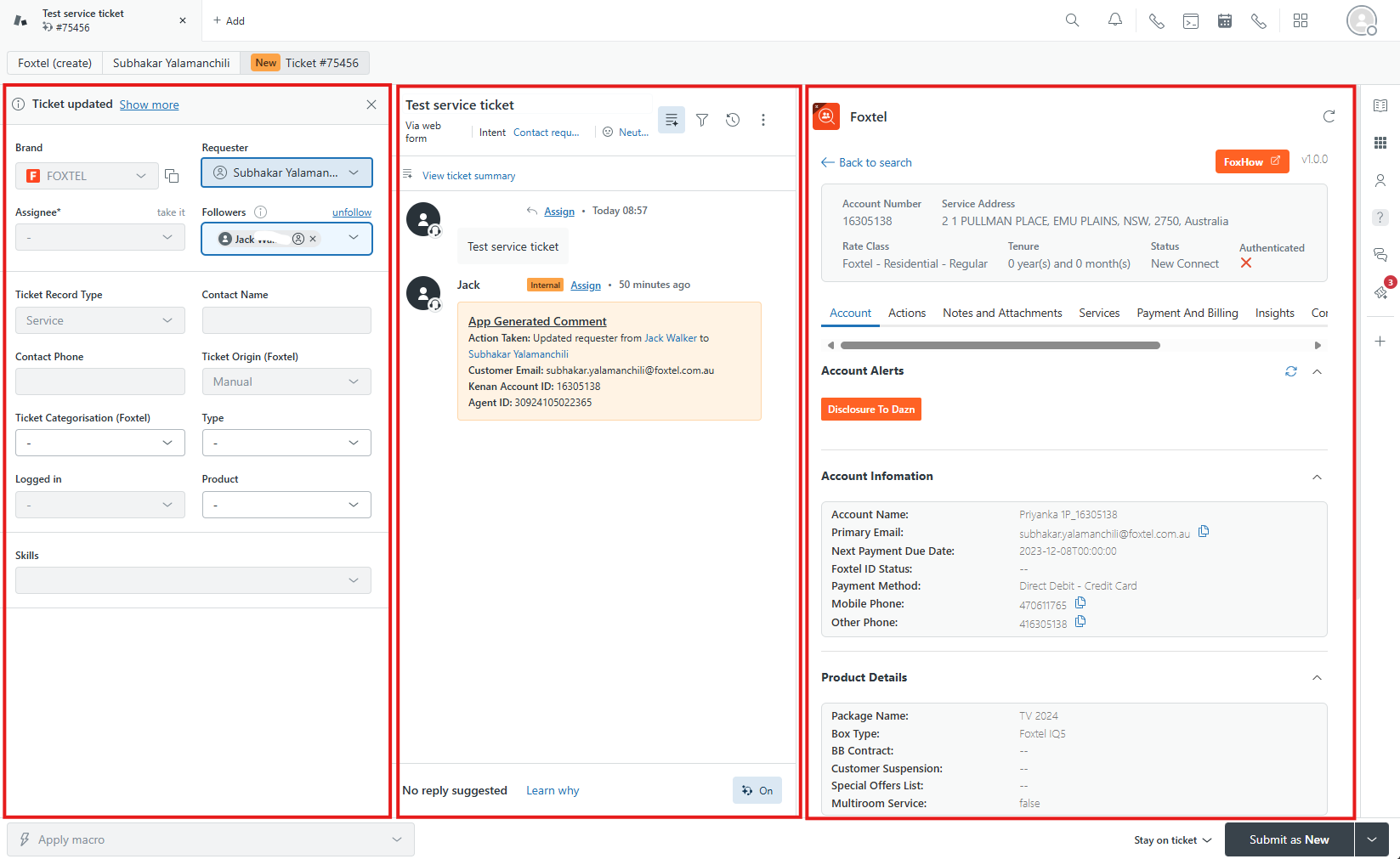
Customers are managed by "tickets" in Zendesk. When a customer reaches out via phone or chat, a ticket is automatically created after passing through the IVR or Chatbot. The ticket is then routed to the next available agent with the appropriate skill set.
Depending on how you are interacting with the customer, whether by phone, chat or case management, your Zendesk home screen will automatically open the customer’s ticket as soon as you are marked available. This ensures you can quickly access and manage each customer interaction efficiently.
You have the option to search for resolved tickets, as well as managing current tickets at any time. The below screenshot is what you will see when managing a customer in Zendesk.
Note: You cannot access an account’s information unless there is an open or resolved ticket on that account.
3.2 The "Requester" field
Important: In Zendesk tickets, the “Requester” refers to the customer. If this field is blank or incorrect, Zendesk will detect the issue and give you the option to update the requester with a single click (see image below). Before clicking "Set Requester", make sure to untick the “CC Original Requester” option.
The requester field must be filled in with the correct customer information on every interaction. Do not leave this box blank, as it will not assign the actions completed on the ticket with the customer's account.
The requester field can be populated using the customer’s full name and phone number. When entering this information manually, it is essential to ensure that the details are accurate and correspond to the correct account. This prevents tickets from being mistakenly associated with the wrong customer.
3.3 Closing your ticket
Tickets will not automatically close when you end a phone call or chat. They will need to be marked as "solved" while on the ticket.
There are other ticket status options available, however these should only be used if you are case managing or returning to the ticket at a later time.
Note: Zendesk will prompt you to complete any required fields before a ticket can be marked as solved. Specifically, the ticket cannot be closed until the Kenan Account Number has been entered.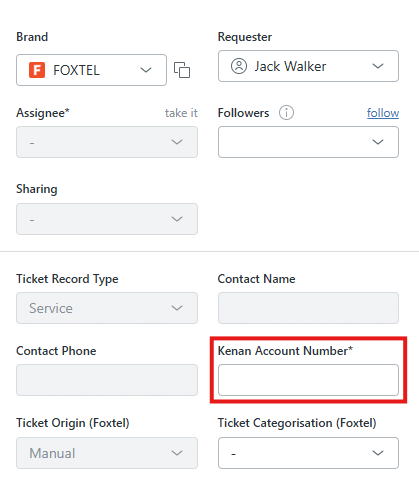
4. Key features and functions
Zendesk provides key customer information to help you clearly identify and discuss account-related details, as well as manage and process order activities within the same system.
In addition to standard customer information views, Zendesk also includes specialised functions that support the following skills:
Billing, Change and Collections:
- Reading bills
- Viewing collections activity and history
- Adjusting bills (applying credits)
- Paying bills
- Updating billing methods
Change:
- Viewing pricing and packaging information
Technical:
- Troubleshooting customer issues
- Arranging replacement equipment
Retention:
- Next Best Action
4. How Zendesk works with other systems
Zendesk has replaced Customer 360 as the main servicing platform and now works alongside CORE. Refer to the below table to understand which systems should be used to complete certain tasks.
| When to use Zendesk: | When to use CORE: |
|
|